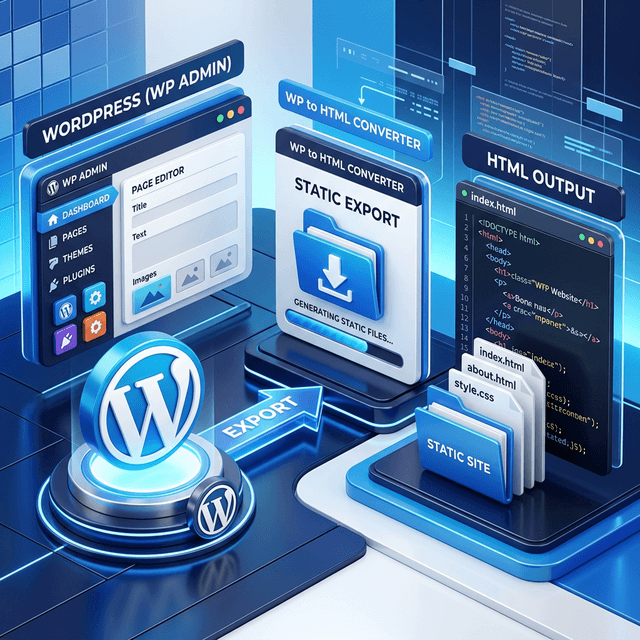
WordPress to HTML conversion is one of the most effective ways to improve the speed, security, and cost-efficiency of a finished website. WordPress powers over 40% of the web, but every page load triggers PHP execution, database queries, and plugin overhead. Converting to static HTML eliminates all of that, giving you a site that loads in a fraction of the time and costs nothing to host.
This guide covers the complete conversion workflow, from planning through deployment and ongoing maintenance.
Conversion Strategy: When Static Makes Sense
Before converting, you need to understand what you gain and what you give up.
| Factor | WordPress (Dynamic) | Static HTML |
|---|---|---|
| Page load time | 1.5--3s | 0.3--0.8s |
| Security vulnerabilities | PHP, plugins, DB | None (just files) |
| Monthly hosting cost | $5--$30+ | $0 |
| Maintenance | Updates, patches, backups | Almost zero |
| Uptime | 99.5% (typical shared hosting) | 99.99%+ (CDN) |
| Content editing | WordPress admin panel | Manual HTML editing or rebuild |
Good Candidates for Conversion
- Portfolio and brochure sites that rarely change
- Marketing landing pages with fixed content
- Archived blogs that will not receive new posts
- Event or campaign pages with a set end date
- Client deliverables that need to exist independently of a CMS
When to Stay on WordPress
Keep WordPress if you need frequent content updates with non-technical editors, WooCommerce for e-commerce, user authentication and memberships, database-driven dynamic features, or active comment sections.
For a deeper look at the WordPress export tool and what it handles, visit our WordPress platform page.
Step-by-Step Conversion Workflow
Step 1: Audit Your WordPress Site
Before converting, inventory everything:
- Pages and posts. List every published URL. Use a sitemap plugin or crawler to generate a full list.
- Forms. Note every form on the site (contact forms, newsletter signups, quote requests). These will need alternative backends after conversion.
- Dynamic features. Identify any features that depend on PHP or the WordPress database (search, comments, user login, WooCommerce).
- Plugins with frontend output. Some plugins inject CSS, JavaScript, or HTML into your pages. Verify that the output is captured in the rendered HTML.
- Media files. Confirm that all images, videos, and downloadable files are accessible and properly linked.
Step 2: Run the Conversion
Method 1: NoCodeExport (Fastest)
The WordPress export tool handles the conversion automatically:
- Make sure your WordPress site is live and publicly accessible
- Paste your WordPress URL into NoCodeExport
- Review the scan results (pages detected, forms found, platform confirmed)
- Configure export options: full-site mode, form handling, optimization settings
- Download your static HTML, CSS, JS, and image files
- Deploy to any hosting provider
This method works with any WordPress theme and preserves responsive layouts, fonts, and images.
Method 2: WordPress Static Site Plugins
Several WordPress plugins can generate static HTML from within the admin panel:
- Simply Static -- free plugin that crawls your site and generates static files
- WP2Static -- open-source static site generator with deployment options
These require more setup and WordPress admin access, but they give you control over WordPress-specific features during the generation process.
Step 3: Handle Forms and Dynamic Elements
Static sites cannot process form submissions on their own. Replace WordPress form plugins with static-compatible alternatives:
- Formspree -- receives form submissions via a simple action URL
- Netlify Forms -- built-in form handling if you deploy to Netlify
- NoCodeExport Hosted Forms -- submissions forwarded to your email automatically
- Custom API -- point forms at your own serverless function or backend endpoint
For search functionality, NoCodeExport generates a client-side search index for Pro exports with 3 or more pages.
For comments, consider Disqus, Utterances (GitHub-based), or simply removing the comment section if it is no longer active.
Step 4: Set Up the Static Hosting
Deploy your exported files to any static hosting provider:
| Provider | Cost | Deploy Method | Best For |
|---|---|---|---|
| Netlify | Free | Drag and drop or Git | Easiest setup |
| Vercel | Free | Git or CLI | Best edge performance |
| GitHub Pages | Free | Git push | Developer-friendly |
| Cloudflare Pages | Free | Git or direct upload | Unlimited bandwidth |
All of these providers include free SSL certificates and global CDN distribution.
SEO Migration Checklist
SEO preservation is the most critical part of a WordPress to HTML conversion. Follow this checklist to protect your rankings:
Before Deployment
- Document every URL on your current WordPress site
- Verify that the exported HTML files use the same URL paths
- Confirm that title tags and meta descriptions are present in each exported page
- Check that Open Graph tags and structured data (JSON-LD) are preserved
- Prepare a
_redirectsor.htaccessfile for any URLs that must change
After Deployment
- Set up 301 redirects for changed URLs on your hosting provider
- Resubmit your sitemap to Google Search Console
- Verify that canonical tags point to your new domain
- Run a site-wide link check to catch broken internal and external links
- Monitor Google Search Console daily for the first two weeks
NoCodeExport includes an automatic SEO audit that flags issues during the export process. Use it as a starting point, then manually verify the items above.
If you are interested in how HTML extraction works across different platforms, our guide on copying HTML code from a website provides additional context.
Link Redirects and Monitoring
Redirect Strategy
WordPress sites often have URL patterns that differ from static file paths. Common cases:
- Trailing slashes. WordPress uses
/about/while static files may be/about.htmlor/about/index.html. Configure your hosting to handle both. - Pagination. Blog archive pages like
/blog/page/2/need to be exported as individual pages or consolidated. - Category and tag pages. These are dynamically generated in WordPress. If they carry SEO value, include them in your export.
- Query parameters. WordPress uses
?p=123for some internal links. These should resolve to clean paths after conversion.
Monitoring After Launch
- Google Search Console. Check the Coverage report daily for the first two weeks. Look for spikes in "Not Found" or "Redirect" errors.
- Analytics comparison. Compare organic traffic week-over-week. A small dip during re-indexing is normal and typically recovers within 7 to 14 days.
- Rank tracking. Monitor your top 10 to 20 keywords. If any drop significantly, verify that the corresponding pages are accessible and that redirects are working.
Updating Content on a Static Site
The main tradeoff of going static is losing the WordPress admin panel for content editing. Here are your options for ongoing updates:
- Re-export. If you still maintain the WordPress installation, make changes there and re-run the export. This is the simplest approach for infrequent updates.
- Edit HTML directly. For small text changes, edit the HTML files directly. This requires basic HTML knowledge.
- Use a static site generator. Migrate your content to a Markdown-based system (Astro, Hugo, Eleventy) for a CMS-like workflow without the overhead of WordPress.
- Headless CMS. Use a service like Sanity, Contentful, or Strapi to manage content, then build static pages from the CMS data.
Performance Results
In our tests, converting a typical WordPress site to static HTML delivers substantial improvements:
- 4x faster page loads (3.2s to 0.8s average)
- 90+ Lighthouse score (up from 65 on WordPress)
- Zero security patches needed (no PHP, no database, no plugins)
- $0/month hosting (down from $12/month on typical shared hosting)
If you need the reverse workflow — importing HTML back into WordPress with a page builder — see our HTML to Elementor converter guide.
Ready to Convert?
Converting WordPress to static HTML is one of the highest-ROI changes you can make for a finished website: faster speeds, better security, and zero hosting costs.
Convert your WordPress site to static HTML for free and start hosting on a modern, maintenance-free stack.