Export your site to HTML
Paste a public URL. The free plan exports a single page with no card required.
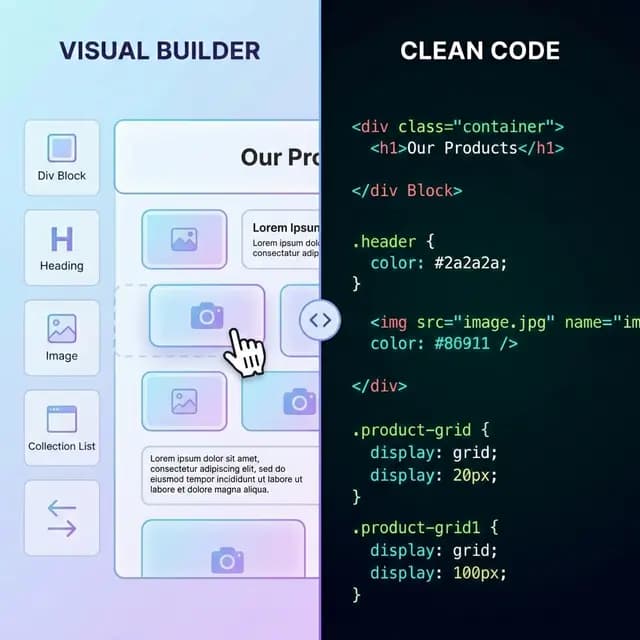
Converting HTML to Elementor can mean three different things: displaying code inside a page, transforming markup into an importable Elementor template, or recreating the design with native widgets. Pick the path based on how editable the result must be.
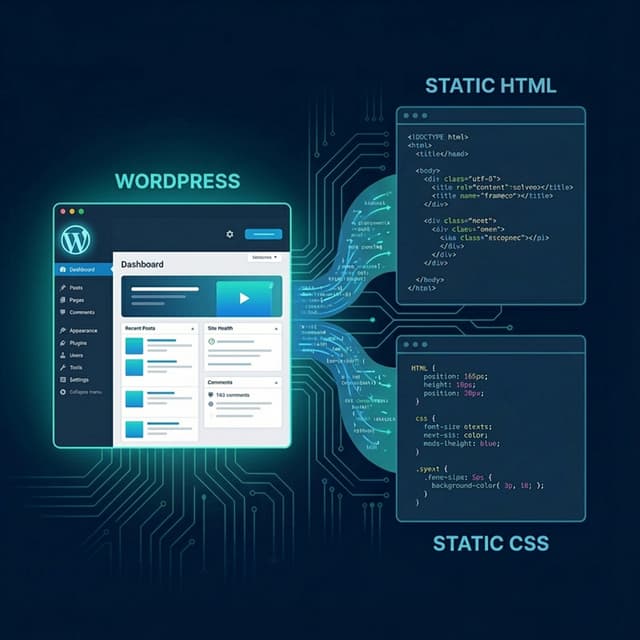
NoCodeExport exports WordPress and Elementor sites to static HTML (Elementor to HTML exporter); it does not generate Elementor JSON from HTML. For that reverse workflow, use the options below. Elementor documents the official HTML widget.
The three conversion paths
| Path | Best for | Editability | Main limitation |
|---|---|---|---|
| Elementor HTML widget | Small embeds and self-contained code | Code editing, not native widgets | Source styles/scripts can conflict or be blocked |
| Third-party JSON/plugin converter | A fast first draft of standard layouts | Varies by converted widget coverage | Output and security need careful review |
| Manual native reconstruction | Long-term WordPress ownership | Highest | Requires the most setup and QA |
Path 1: Elementor's HTML widget
Use the official widget for a contained block whose HTML, CSS, or JavaScript you understand and are allowed to run.
- Create or edit a page in Elementor.
- Drag the HTML widget into the intended container.
- Paste only the required code.
- Move shared CSS or scripts to a controlled site-level location when appropriate.
- Test responsive layout, keyboard access, security, and loading behavior.
The widget does not turn headings, images, or buttons into separate native Elementor widgets. Editors still work with code.
Path 2: third-party JSON or plugin converters
Some external services and WordPress plugins parse HTML and create Elementor template JSON or widget structures. Examples include WPConverters' HTML to Elementor tool and plugins listed in the WordPress plugin directory. These links are examples, not endorsements.
Before uploading proprietary HTML or installing a plugin, verify:
- who receives and stores the source code;
- which Elementor and WordPress versions are supported;
- how headings, images, links, containers, and responsive values map;
- whether assets are imported or remain on external URLs;
- whether scripts, forms, and dynamic content are ignored;
- update history, support, permissions, and rollback steps;
- whether the exported JSON can be inspected before import.
Use a staging site and keep a backup. A generated template is a draft until every page has been reviewed.
Path 3: rebuild with native Elementor widgets
Manual reconstruction is usually the most maintainable option when clients will edit the site regularly.
1. Audit the HTML site
Inventory pages, reusable sections, design tokens, breakpoints, images, fonts, forms, scripts, structured data, and redirects.
2. Prepare WordPress safely
Use staging, current WordPress and Elementor releases, a backup, and the minimum required plugins. Define roles before giving editors access.
3. Create global styles and components
Configure Site Settings for typography, colors, spacing, and layout widths. Build header, footer, buttons, cards, and repeated calls to action once.
4. Map HTML to widgets
- headings to Heading widgets;
- paragraphs and lists to Text Editor widgets;
- images to the Media Library and Image widgets;
- links and calls to action to Button widgets;
- sections and grids to Elementor containers;
- forms to Elementor Forms or a maintained form plugin;
- dynamic content to WordPress fields, templates, and queries.
5. Migrate URLs and SEO
Keep useful slugs where possible. Add permanent redirects for changed URLs and restore titles, descriptions, canonicals, headings, alt text, Open Graph data, and required structured data.
What converters cannot safely infer
HTML describes the browser output, not the original design system. A converter cannot reliably know which sections should become global components, which content belongs in the CMS, how a form is processed, or whether a script is safe. Complex grid logic, pseudo-elements, application state, and custom JavaScript often need manual reconstruction.
Pre-launch QA
- Compare every page at desktop, tablet, and mobile sizes
- Test menus, links, forms, search, filters, and dynamic templates
- Store images locally or on an approved CDN and verify licenses
- Remove unused scripts, styles, plugins, and administrator accounts
- Check headings, labels, focus order, contrast, and alt text
- Confirm canonicals, redirects, sitemap, robots directives, and analytics
- Measure the actual site before and after instead of promising a fixed speed gain
Use the HTML widget for contained code, a vetted third-party converter for a provisional template, or a native rebuild when maintainability matters most.
Related resources
- Website export reliability benchmark methodology — measures outbound website exports, not HTML-to-Elementor editability