Export your site to HTML
Paste a public URL. The free plan exports a single page with no card required.
When site owners search for Squarespace export options, they are usually met with a frustrating answer: you can only export your content as a WordPress-formatted XML file. But an XML file only includes blog posts and basic page text. It does not include your design, CSS, images, navigation, or any of the visual elements that make your site look the way it does.
If you want to export a Squarespace website with its full design intact, you need a different approach. This guide shows you exactly how to export Squarespace to HTML so you can take your entire front-end with you, host it anywhere, and escape recurring subscription fees.
What Squarespace Actually Exports (and What It Doesn't)
Squarespace has a built-in export feature located under Settings > Advanced > Import/Export. However, it is severely limited.
Included in the native Squarespace XML export:
- Blog posts (text content only)
- Basic pages (text content)
- Gallery page image references (links, not the actual files)
Not included in the XML export:
- Your site design, template layout, and CSS
- Navigation structure and menus
- Custom fonts and typography
- Hero sections, banners, and visual blocks
- Forms and their configuration
- Footer content
- Responsive layout rules (mobile/tablet views)
- JavaScript interactions and animations
In other words, the native Squarespace XML export gives you raw text but strips away everything that makes your site visually distinctive. For someone trying to migrate a beautifully designed portfolio or business site, this is practically useless.
To export a Squarespace site with the design intact, run the published site through the Squarespace exporter instead: the exporter captures the rendered pages, CSS, fonts and images that the XML file leaves out.
How to Export a Squarespace Website to HTML
To export Squarespace to HTML with the full visual design preserved, you must use a specialized front-end export tool like NoCodeExport.
Step 1: Make Sure Your Site Is Live
Your Squarespace site must be published and publicly accessible. If you are currently on a free trial, the site may have a Squarespace banner at the bottom—don't worry, our exporter will automatically strip this out during the export process.
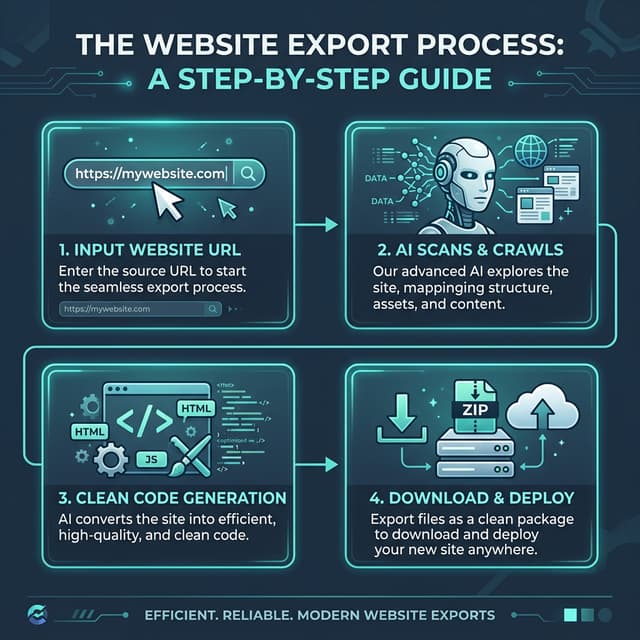
Step 2: Scan Your Site
- Open the NoCodeExport Squarespace exporter.
- Enter your live Squarespace URL (either your custom domain or your
.squarespace.comstaging address). - Click Analyze.
Our engine will scan your site, detect the Squarespace platform, count the total number of pages, identify any embedded forms, and map your entire site structure.
Step 3: Configure and Export
Choose your preferred export settings:
- Full site to export all pages, or single page for just one specific layout.
- Form handling mode. Squarespace forms won't work off-platform, so you can automatically rewrite them to use Formspree, Netlify Forms, or a custom API.
- Minification to compress your HTML and CSS for faster load times.
Click Export. The tool renders each page in a headless browser, captures the full HTML/CSS output, strips Squarespace tracking scripts, and packages everything into a downloadable ZIP file.
Step 4: Deploy Your New HTML Site
Unzip your downloaded files and upload them to any static hosting provider. Your exact Squarespace design is now running independently, completely free from any Squarespace subscription.
What Gets Preserved in the Export?
When you export Squarespace to HTML using this method, the output includes:
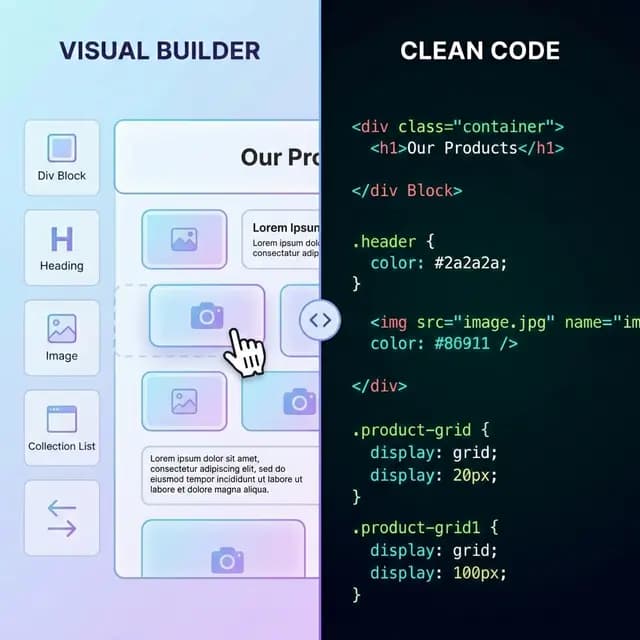
- Full visual design: Every section, block, and layout element appears exactly as it did on Squarespace.
- CSS and typography: All styles, custom fonts, and responsive breakpoints are captured perfectly.
- Images: Photos, backgrounds, and gallery images are included.
- Navigation: Header menus, dropdowns, and footer links work locally out-of-the-box.
- Scroll animations: Squarespace's native entrance animations are recovered via cross-platform lightweight helpers.
- Forms: Rewritten with working submission endpoints (not dependent on the Squarespace backend).
What does not transfer:
- Squarespace Commerce (server-side checkout and inventory)
- Member areas (login-gated content)
- Scheduling and appointment features
- Blog comment systems (which are hosted by Squarespace)
Squarespace Export Options Compared
| Method | Design Preserved | Cost | Effort |
|---|---|---|---|
| Squarespace XML Export | No (text only) | Free | Low |
| NoCodeExport HTML Export | Yes (full front-end) | Free Tier Available | Low |
| Manual browser "Save-As" | Partial (broken links, missing assets) | Free | High |
| Hire a developer to rebuild | Yes (but different code) | $2,000–$10,000+ | High |
Exporting Squarespace to HTML with a dedicated tool gives you the best balance: full design preservation, near-zero cost, and minimal effort.
Where to Host Your Exported Squarespace Site
After you export Squarespace to HTML, you'll need a place to host it.
| Provider | Free Tier | Best For |
|---|---|---|
| Netlify | 100 GB bandwidth | Drag-and-drop deploys, built-in forms |
| Vercel | 100 GB bandwidth | Edge performance, developer-friendly |
| GitHub Pages | Unlimited | Version control and open-source |
| Cloudflare Pages | Bandwidth: check current plan terms | Incredible global CDN speeds |
All four providers support custom domains and HTTPS for free. For a detailed comparison, see our free hosting guide.
Squarespace charges $16 to $49/month for hosting. Switching to free static hosting after export saves you $192 to $588 per year.
Common Issues When Exporting Squarespace
Some fonts look different.
Squarespace serves fonts from their own premium CDN (like Typekit). If a font is not available from Google Fonts or another public source, you may need to substitute it with a similar open-source typeface. Most common web fonts transfer without issues.
Blog comments are missing.
Squarespace comments are stored securely on their servers and cannot be exported. If you need to preserve comments, copy them manually before exporting, or switch to a third-party comment system like Disqus.
Embedded blocks (maps, forms, code) need reconfiguration.
Third-party embeds like Google Maps render fine in the export, but Squarespace-native forms need to be reconfigured with an external form handler. The NoCodeExport tool handles this automatically based on your chosen settings.
Pre-Export Backup and QA Checklist
Before you export, take five minutes to protect yourself:
- Download any original images or media you uploaded to Squarespace
- Run the native XML export (Settings > Advanced > Import/Export) as a secondary text backup
- Document your URL structure (every page path) for redirect planning
- Note third-party integrations (forms, chat widgets, analytics) you will reconfigure
After the export, unpack the ZIP and verify:
- All pages are present and match your live site
- Images render and fonts load on headings and body text
- Navigation links point to the correct pages
- Mobile layouts are intact
- Every form submits to your chosen endpoint
Keeping Your SEO Through the Move
NoCodeExport preserves title tags, meta descriptions, Open Graph tags, and Squarespace's JSON-LD structured data. To make the switch invisible to Google:
- Keep the same URL paths on the new host wherever possible
- Add 301 redirects for any paths that change
- Update canonical URLs to the new domain, then resubmit your sitemap in Search Console
- Watch Search Console for crawl errors for two weeks — a brief dip while Google re-crawls is normal
Frequently Asked Questions
Can you export a Squarespace website to HTML?
Yes. While Squarespace's built-in export only produces an XML file for migrating blog text to WordPress, tools like NoCodeExport can export your full front-end design as static HTML, CSS, and JavaScript.
Is the Squarespace XML export useful?
Only if you need raw blog post text to import into WordPress or another CMS. The XML export is entirely useless if you want to keep your site's design, layout, or visual elements.
Will my Squarespace site still work after I export it?
Yes. Your original Squarespace site is not affected. The export creates an external copy. You can keep your Squarespace site running while you test the exported HTML version on a new host.
Can I edit the exported HTML?
Yes. The exported files are standard, readable HTML, CSS, and JavaScript. Any web developer or code editor (like VS Code) can modify them. For ongoing visual editing without code, consider our self-hosting portfolio guide.
Related Guides
- Squarespace Website Exporter — the tool, with plans and FAQs
- Best no-code export tools — Compare tools across all platforms
- Self-hosting your portfolio — Guide for designers going independent
- Free static hosting comparison — Where to host after export
Export Your Squarespace Site Today
Squarespace's XML export is rarely enough for serious site owners. If you want your actual design, not just plain text, you need to export Squarespace to HTML.
Try the Squarespace exporter for free today and review the rendered static package for your hosting workflow.