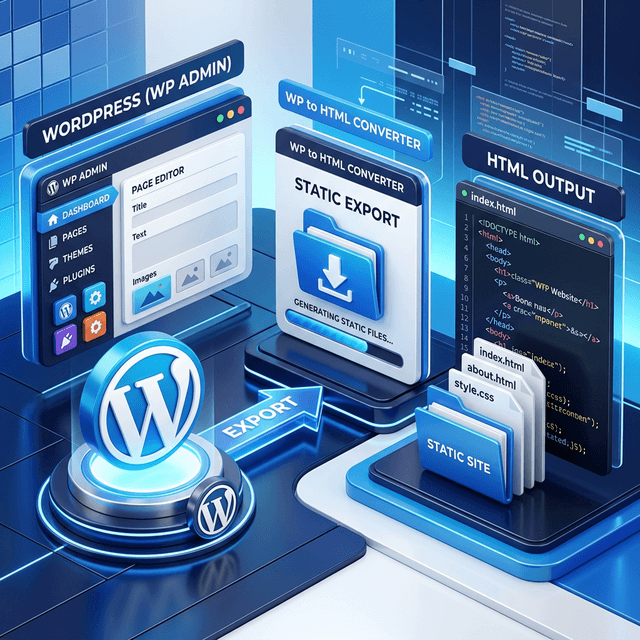
When it comes time to export a Squarespace website, most users discover that the platform's built-in tools fall short. Squarespace's native export only covers blog posts as XML and a single gallery page. It does not include your design, CSS, images, or custom code. This guide provides a complete, practical workflow for exporting your entire Squarespace site to portable HTML files you can host anywhere.
Why Export from Squarespace?
Squarespace is a polished website builder, but there are several compelling reasons to move your site off the platform:
- Cost reduction. Squarespace plans range from $16 to $49 per month ($192 to $588 per year). Exporting to static HTML and using free hosting eliminates that recurring cost entirely.
- Performance gains. Squarespace sites load well, but static HTML served from a CDN loads faster. Expect meaningful improvements in Core Web Vitals.
- Code ownership. Once exported, you own every file. No subscription required to keep your site online.
- Migration flexibility. Move to any framework (Next.js, Astro, Hugo) or hosting provider without starting from zero.
- Client delivery. Agencies can hand off clean, self-contained code that clients can host independently.
Keeping a simple landing page or portfolio active on Squarespace can cost $600 or more over three years. Exporting the code reduces that to the cost of a domain name ($10/year).
Here is a direct comparison:
| Factor | Squarespace Hosting | Self-Hosted (Exported) |
|---|---|---|
| Monthly cost | $16--$49 | $0 |
| Annual cost | $192--$588 | $0 |
| Page speed | Good | Excellent |
| Code access | Limited | Full |
| Custom backend | Not available | Fully supported |
| Platform dependency | Squarespace required | Independent |
For platform-specific export features and a live demo, visit our Squarespace export tool page.
Full Migration Workflow
Step 1: Prepare and Back Up
Before exporting, document and back up everything:
- Download any original images or media files you uploaded to Squarespace
- Export your blog content using Squarespace's native XML export (Settings > Advanced > Import/Export) as a secondary backup
- Screenshot your site's navigation structure and key pages for reference
- Document your current URL structure (every page path) for redirect planning
- Note any third-party integrations (forms, chat widgets, analytics) that will need reconfiguration
Step 2: Run the Export
Use NoCodeExport for a complete export that includes your design, CSS, images, and all pages:
- Make sure your Squarespace site is published and publicly accessible
- Copy your site URL (your custom domain or
yoursite.squarespace.com) - Open NoCodeExport and paste your URL
- Review the scan results, which show detected pages, forms, and platform details
- Configure export options: full-site export, form handling mode, and optimization preferences
- Click Export and download your ZIP file
The export typically completes in 60 to 120 seconds and preserves responsive layouts, fonts, images, CSS animations, and navigation structure.
Step 3: Verify Exported Content
After downloading, unpack the ZIP and check:
- All pages are present and match your live site
- Images render correctly and are not broken
- Fonts load properly (check both headings and body text)
- Navigation links work and point to the correct pages
- Mobile layouts are intact
If you want to learn more about how website code extraction works in general, see our guide on how to copy HTML code from a website.
Content, Media, and SEO Handling
Content and Media
NoCodeExport captures the rendered HTML of each page, which includes all visible text, images, and media. A few things to keep in mind:
- Images are downloaded and included in your export (on Pro plans). On the free tier, images are hotlinked to their original Squarespace CDN URLs.
- Videos embedded from YouTube or Vimeo will continue to work since they use external embed codes. Squarespace-hosted video backgrounds may need alternative hosting.
- Custom CSS injected via Squarespace's Code Injection feature is preserved in the exported HTML.
SEO Preservation
Squarespace stores SEO metadata in the page source, and NoCodeExport preserves it during export:
- Title tags and meta descriptions are carried over as-is
- Open Graph and social sharing tags remain intact
- Canonical URLs should be updated to point to your new domain after deployment
- Structured data (JSON-LD) injected by Squarespace is preserved
To ensure a smooth SEO transition:
- Keep the same URL paths on your new host whenever possible
- Set up 301 redirects for any URLs that must change
- Resubmit your sitemap to Google Search Console after deployment
- Monitor Google Search Console for crawl errors during the first two weeks
- Use the built-in SEO audit included with every NoCodeExport export
Deployment and Performance
Choosing a Host
Once exported, deploy to any static hosting provider:
| Provider | Cost | Best For |
|---|---|---|
| Netlify | Free | Easiest (drag and drop) |
| Vercel | Free | Best edge performance |
| GitHub Pages | Free | Version control integration |
| Cloudflare Pages | Free | Unlimited bandwidth |
Deployment Steps
For most providers, deployment is straightforward:
- Netlify: Drag your exported folder into the Netlify dashboard. Your site is live in seconds.
- Vercel: Connect a GitHub repository containing your exported files, or use the Vercel CLI.
- Cloudflare Pages: Connect your repository or use the Wrangler CLI for direct upload.
Performance Verification
After deployment, run these checks:
- Lighthouse audit. Score should be 85 or higher across all categories.
- Mobile responsiveness. Test on multiple screen sizes using Chrome DevTools.
- Core Web Vitals. Check LCP, FID, and CLS in Google PageSpeed Insights.
- Broken links. Use a link checker tool to verify all internal and external links work.
- Form functionality. Submit a test entry through every form on the site.
Post-Migration Monitoring
The first two weeks after migration are critical:
- Google Search Console. Check for crawl errors, indexing issues, and any drop in impressions.
- Analytics. Compare traffic patterns before and after migration. A brief dip is normal as Google re-crawls your pages.
- Uptime monitoring. Set up a free uptime monitor (e.g., UptimeRobot) to catch any hosting issues early.
- User feedback. Ask a few users to browse the new site and report anything that looks off.
If rankings shift, verify that your 301 redirects are working correctly and that all canonical tags point to the new URLs.