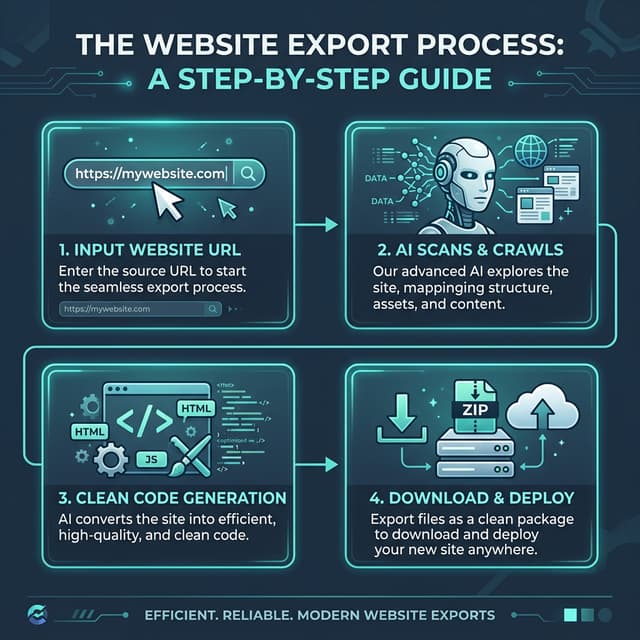
Export your site to HTML
Paste a public URL. The free plan exports a single page with no card required.
The right way to copy HTML depends on what you need: the server's original source, the rendered DOM after JavaScript runs, one inspected element, or a working offline page with its assets.
To download your website as a ZIP, scan a public URL you own or are authorized to export and select the pages you need. Free keeps images and fonts linked to the source; eligible paid exports offer asset downloading. Unzip and test the result before treating it as an independent copy.
NoCodeExport has published the protocol for a prospective website export reliability benchmark. The 60–90-day collection window has not started, so the page contains methodology—not a reliability result.
Choose the correct method
| Goal | Method | What you get | What is missing |
|---|---|---|---|
| Read or copy raw whole-page source | View Page Source | Original HTML response | Later DOM changes and local assets |
| Copy the page after JavaScript renders | DevTools, copy <html> outerHTML | Current rendered DOM | Downloaded CSS, fonts, images, backend |
| Copy one component | Inspect Element | Selected node and descendants | Site-wide styles and behavior |
| Save one page with nearby assets | Save Page As, Webpage Complete | HTML plus a browser-created asset folder | Reliable full-site links and dynamic backends |
| Archive or migrate multiple pages | Website exporter | Crawled pages, assets, rewritten links | Private/server-side systems |
How to get the HTML code of a website and download it
- To read it: open the page and press
Ctrl+U(Windows, Linux) orCmd+Option+U(macOS). The tab that opens is the page's HTML. - To download one page as HTML: press
Ctrl+SorCmd+Sand save as Webpage, HTML only for the markup alone, or Webpage, Complete for the markup plus a folder of its images, CSS and scripts. - To download a whole website as HTML: use a website downloader that follows the links between pages and rewrites them, such as wget or HTTrack for static sites, or a rendering exporter for sites built with JavaScript. How to download an entire website compares the options.
The sections below explain each method and what it leaves out.
Method 1: copy the whole-page source
- Open the page in Chrome, Edge, Firefox, or Safari.
- Choose View Page Source from the context menu, or use
Ctrl+Uon Windows/Linux andCmd+Option+Uon macOS where supported. - Select the source, copy it, and save it as an
.htmlfile in a code editor.
This shows the response delivered by the server. A React, Vue, or other JavaScript application may add or replace content after that response, so the source can differ from the page on screen.
Method 2: copy the rendered DOM
- Open Developer Tools (
F12,Ctrl+Shift+I, orCmd+Option+I). - Open the Elements or Inspector panel.
- Find the root
<html>element. - Right-click it and choose Copy outerHTML.
- Save the result as HTML.
The rendered DOM includes changes JavaScript has made so far. It still references stylesheets, images, fonts, and scripts by URL; copying the DOM does not download those files or reproduce APIs and databases.
Method 3: copy one element with Inspect Element
Use the element picker, select the desired component, then copy its outerHTML. In the Styles or Computed panel, identify which CSS rules affect it.
Copying every rule is rarely clean: styles may depend on root variables, reset styles, parent classes, media queries, pseudo-elements, fonts, and JavaScript state. Recreate only the rules and assets you are allowed to use.
Method 4: save the page or export the site
For one page, use Ctrl+S or Cmd+S and choose Webpage, Complete. The browser normally saves an HTML file and an asset folder. Test it offline because internal links, lazy-loaded media, and application behavior may still point to the live site.
For multiple pages, an authorized full-site exporter can crawl links, download accessible assets, and rewrite internal URLs. Keep an untouched archive, then test the working copy on a local or test server.
How to view or copy HTML on mobile
Android
Some browsers let you prepend view-source: to a URL; support varies. A more dependable workflow is Chrome remote debugging from a computer connected to the Android device. For a quick element check, use a reputable source-viewer only for non-sensitive public pages.
iPhone and iPad
Mobile Safari does not expose desktop DevTools directly. Enable Web Inspector on the device and inspect it from Safari on a Mac, or use a Shortcut/source-view app after reviewing its privacy behavior. Never send private page content or credentials to an unknown third-party viewer.
Why copied HTML looks broken
CSS: <link> tags may point to external stylesheets, while relative paths no longer match the saved folder. Download permitted CSS and update paths.
Images: handle src, srcset, <picture>, CSS background URLs, lazy-load attributes, SVGs, and video poster files.
Fonts: copy only licensed font files and their @font-face declarations. A page can fall back to a different font and change layout.
JavaScript: modules, API calls, cookies, authentication, and server routes will not work merely because a script tag was copied.
Links: convert internal navigation to the correct relative or final absolute URLs. Preserve mail, telephone, fragment, download, and external links.
Legal and ethical limits
Access to public source does not grant ownership. Copy your own site, open-licensed work within its license, or material you have permission to migrate. Design, copy, images, video, fonts, trademarks, personal data, and paid templates can carry separate rights and restrictions. Do not bypass authentication, access controls, robots restrictions, or technical protections.
When working for a client, record who owns the domain, content, design, code, and asset licenses. Remove credentials and personal data from archives before sharing them.
Final verification
- Open every saved page through a local server
- Check desktop and mobile layouts
- Confirm CSS, images, fonts, and scripts load from intended locations
- Test navigation, forms, embeds, and error states
- Remove unauthorized assets and secrets
- Preserve or redirect important URLs before publishing
Use View Source for raw HTML, DevTools for the rendered DOM or a single element, Save Page As for a quick one-page copy, and a full exporter for an authorized multi-page migration.