Can you import HTML code into Gamma? The short answer is no — Gamma does not support importing raw HTML files or pasting full HTML documents directly into its editor. But there are practical workarounds and migration paths depending on what you are trying to accomplish.
This guide explains what Gamma supports today, which workarounds actually work, and when you should consider a different approach entirely.
Short Answer and Current Limitations
As of 2026, Gamma (gamma.app) is an AI-powered presentation and page builder. It creates beautiful, card-based pages that look great on any device. However, its import capabilities are limited:
| Import Method | Supported? | Notes |
|---|---|---|
| Paste HTML code | No | Gamma strips HTML tags and treats content as plain text |
| Import HTML file | No | No file import feature for HTML documents |
| Import from URL | Partial | Gamma can read a URL and generate content based on it, but does not replicate the exact layout |
| Paste formatted text | Yes | Rich text from Google Docs or Word is roughly preserved |
| Upload images | Yes | Images can be added to cards manually |
| Embed URLs | Yes | iframes and embeds work for external content |
The core limitation is that Gamma uses its own component system (cards, sections, layouts) that is fundamentally different from raw HTML structure. There is no mapping layer to convert HTML elements into Gamma components.
What Gamma Supports Today
While direct HTML import is not available, Gamma offers several content input methods:
AI-Powered Page Generation
Gamma's strongest feature is generating content from prompts. You can describe what you want, and Gamma's AI creates a complete page with layout, styling, and content. If you have HTML content to migrate, you could provide the text content as context to Gamma's AI.
Text Paste
You can copy text from any source — a website, Google Docs, Word — and paste it into Gamma cards. The text structure (headings, lists, paragraphs) is roughly preserved, but HTML tags are stripped. This is useful for migrating text content without worrying about layout.
Image Upload
Images can be uploaded directly to Gamma cards or sourced from Unsplash within the editor. If your HTML site has important images, download them separately and upload them to Gamma.
Embeds
Gamma supports embedding external content via URL — YouTube videos, Figma files, Loom recordings, Google Maps, and more. If you have interactive HTML widgets, you could host them separately and embed them in Gamma via an iframe.
Import from Presentations
Gamma can import PowerPoint and Google Slides files, converting slides into Gamma cards. If your HTML content was originally a presentation, this might be a viable path.
Workarounds That Actually Work
If you need to move content from an HTML site into Gamma, here are the most practical approaches:
Approach 1: Content-First Migration
- Open your HTML pages in a browser
- Copy the text content (Ctrl+A, Ctrl+C)
- Paste into Gamma's editor — the text structure is preserved
- Download images from your site separately
- Upload images to the appropriate Gamma cards
- Use Gamma's design tools to recreate the visual layout
This works well for content-heavy pages like articles, documentation, and guides.
Approach 2: AI-Assisted Rebuild
- Copy the text content from your HTML pages
- Provide the text to Gamma's AI as context
- Ask Gamma to generate a page based on the content
- Review and adjust the AI-generated layout
- Add images and embeds manually
This is faster than manual rebuild and often produces good results for marketing pages and portfolios.
Approach 3: Embed the HTML
If you need to preserve an exact HTML layout within a Gamma page:
- Host your HTML files on a static hosting provider (Netlify, Vercel, GitHub Pages)
- In Gamma, add an Embed block to your card
- Paste the URL of your hosted HTML page
- The HTML renders inside an iframe within the Gamma page
This preserves the exact layout but the embedded section is not editable in Gamma.
Approach 4: Screenshot-Based Approach
For visual reference during a rebuild:
- Take screenshots of each section of your HTML site
- Use the screenshots as visual guides while rebuilding in Gamma
- Recreate the layout using Gamma's native components
This is the most time-consuming approach but gives you fully native Gamma pages that are easy to edit and maintain.
Best Migration Paths
The right approach depends on your goal:
If you want content in Gamma's format: Use the content-first or AI-assisted approach. You get fully editable Gamma pages that take advantage of Gamma's design system and responsive layout.
If you need to keep the existing rendered layout: Host the HTML separately and embed it in Gamma. The embedded document remains separate and is not editable within Gamma.
If you want to maintain an HTML site independently: Skip the Gamma import entirely. Host your HTML on a static provider and use Gamma for presentation-style content instead.
When to Use Export Instead of Import
Sometimes the reverse direction makes more sense. If you have content in Gamma and want to move it out:
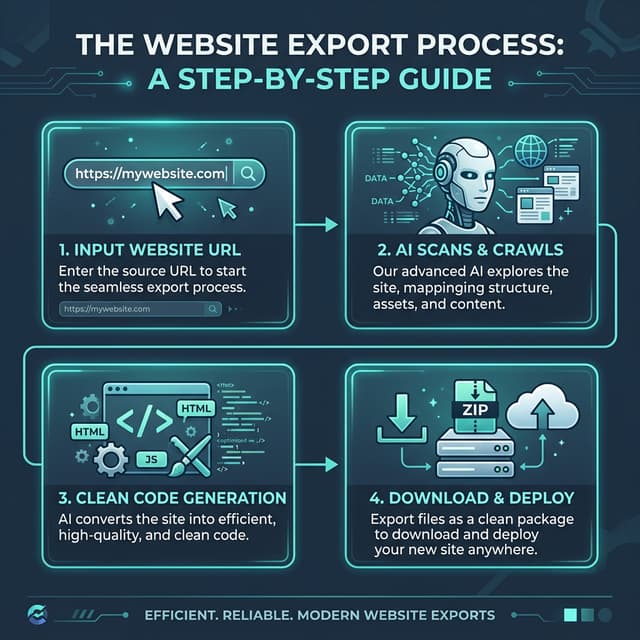
- Gamma to HTML exporter — export your published Gamma pages to static HTML files
- PDF export — Gamma has built-in PDF export for presentations
- Copy content — select and copy text from Gamma pages to paste elsewhere
If you are building HTML sites and want to host them independently, explore the website downloader for a complete export workflow.
Conclusion
Gamma does not support importing HTML code directly, but practical workarounds exist depending on your needs. For content migration, paste text and rebuild visually. For exact layout preservation, embed hosted HTML. For full code ownership, skip the import and host your HTML independently.
If you are working with Framer instead, see our HTML to Framer guide for a similar migration analysis.