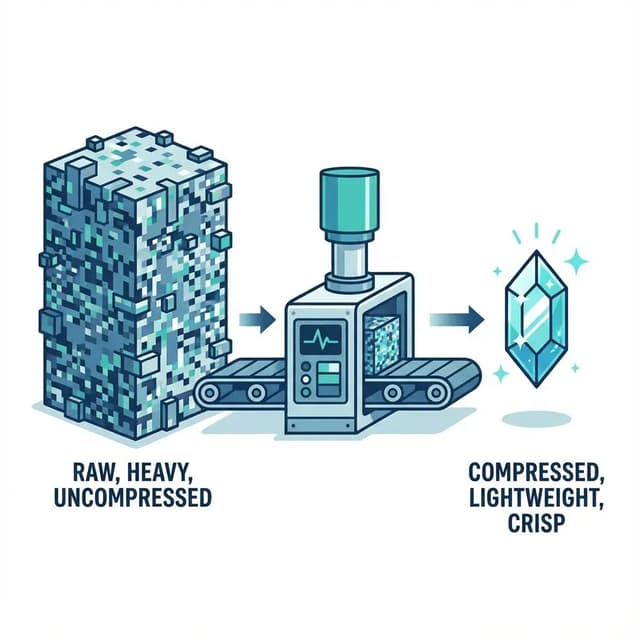
We have all visited a beautiful portfolio site that takes 10 seconds to load. The culprit is almost always images. Unoptimized photos account for over 60% of total page weight on the average website, and they are the single biggest factor in slow load times.
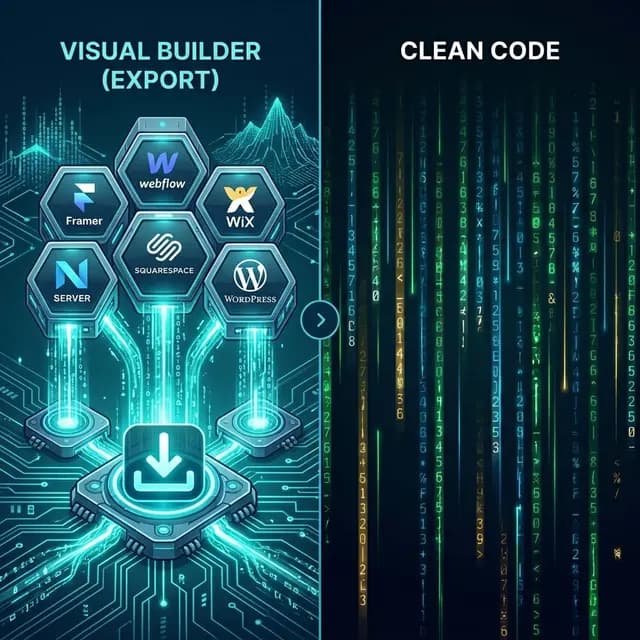
If you have exported your site from Framer, Webflow, Wix, or Squarespace to host it yourself, image optimization is now your responsibility. The good news: it is also the single most impactful thing you can do to improve performance.
Why Image Optimization Matters
Google uses page speed as a ranking factor. Core Web Vitals, specifically Largest Contentful Paint (LCP), directly measure how quickly your largest image loads. A site with unoptimized images will:
- Score lower on Lighthouse (often 30 to 50 points lower)
- Rank worse in Google search results
- Lose visitors (53% of mobile users leave if a page takes over 3 seconds to load)
- Cost more in bandwidth if you are on a metered hosting plan
The impact of optimization is dramatic:
| Metric | Before Optimization | After Optimization |
|---|---|---|
| Total image weight | 8.2 MB | 1.4 MB |
| Lighthouse Performance | 52 | 91 |
| LCP | 4.8s | 1.2s |
| Time to Interactive | 6.1s | 2.3s |
Image Formats: Which to Use
JPEG / JPG
Best for photographs and complex images with many colors. JPEG uses lossy compression, meaning it discards some data to reduce file size. At quality 80 to 85, the visual difference is imperceptible but the file size drops by 60 to 70%.
PNG
Best for graphics with flat colors, text, or transparency. PNG uses lossless compression, so quality is preserved. However, PNG files are significantly larger than JPEG for photographic content. Use PNG only when you need transparency or crisp text rendering.
SVG
Best for logos, icons, and illustrations. SVG files are resolution-independent (they scale infinitely without losing quality) and are typically tiny in file size. Use SVG whenever possible for non-photographic graphics.
WebP
The modern standard. WebP produces smaller files than both JPEG and PNG at equivalent quality. Browser support is now universal (97%+ of browsers). If you are not using WebP, you are leaving performance on the table.
AVIF
The newest format. AVIF offers even better compression than WebP, but browser support is still growing (around 90%). Use AVIF with WebP fallbacks for maximum performance.
| Format | Best For | Compression | Transparency | Browser Support |
|---|---|---|---|---|
| JPEG | Photos | Lossy | No | 100% |
| PNG | Graphics, text | Lossless | Yes | 100% |
| SVG | Icons, logos | Vector | Yes | 100% |
| WebP | Everything | Both | Yes | 97% |
| AVIF | Everything | Both | Yes | 90% |
The Optimization Tool Stack
1. TinyPNG / TinyJPG
Run every single raster image through TinyPNG before uploading. It can often reduce file size by 70% with zero visible quality loss. The free tier handles 500 images per month.
2. Squoosh.app
A free tool by Google for manual format conversion. Excellent for converting images to WebP or AVIF format with a visual quality comparison slider.
3. Sharp (Node.js)
For automated pipelines, Sharp is the go-to image processing library. It can resize, convert, and compress images programmatically. Useful if you are building a deployment script for your exported site.
4. ImageOptim (Mac) / FileOptimizer (Windows)
Desktop applications that batch-optimize images. Drag in a folder, and every image gets compressed without quality loss.
Key Optimization Techniques
Lazy Loading
Images below the fold should not load until the user scrolls to them. This is the single easiest optimization to implement:
<img src="photo.webp" loading="lazy" alt="Description">
Adding loading="lazy" to image tags tells the browser to defer loading until the image is near the viewport. This dramatically improves Time to Interactive and reduces initial page weight.
Important: do not lazy-load your hero image or any image visible above the fold. Those should load immediately.
Responsive Images
Serve different image sizes based on the device. A 2400px wide hero image is wasted on a 375px mobile screen:
<img
  srcset="hero-400.webp 400w, hero-800.webp 800w, hero-1600.webp 1600w"
  sizes="(max-width: 600px) 400px, (max-width: 1200px) 800px, 1600px"
  src="hero-1600.webp"
  alt="Hero image"
  loading="eager"
>
The Picture Element
Use <picture> to serve modern formats with automatic fallbacks:
<picture>
  <source srcset="photo.avif" type="image/avif">
  <source srcset="photo.webp" type="image/webp">
  <img src="photo.webp" alt="Description" loading="lazy">
</picture>
Browsers pick the first supported format. This gives you AVIF compression for modern browsers and JPEG for older ones.
Dimension Attributes
Always include width and height attributes on images. This prevents layout shift (CLS) as images load:
<img src="photo.webp" width="800" height="600" alt="Description" loading="lazy">
How NoCodeExport Handles Images
When you export a site from Framer, Webflow, Wix, or Squarespace, NoCodeExport automatically applies several image optimizations:
- Lazy loading attributes are added to non-critical images (
loading="lazy",decoding="async"). - Fetch priority hints are set for above-the-fold images (
fetchpriority="high"). - Picture element wrapping (Pro plan) converts eligible JPG and PNG images to include WebP source hints.
- Asset downloading (Pro plan) saves images locally instead of hotlinking, giving you full control over optimization.
These optimizations are applied automatically during the export process. No manual intervention required.
Post-Export Optimization Checklist
After exporting your site, run through this checklist:
- Compress all images through TinyPNG or Squoosh
- Convert large JPEGs and PNGs to WebP format
- Verify all below-fold images have
loading="lazy" - Confirm hero/above-fold images do NOT have lazy loading
- Add
widthandheightattributes to prevent layout shift - Remove any unused images from your export folder
- Test with Lighthouse and aim for 90+ Performance score
Related Guides
- How to export Framer to HTML -- Full export tutorial
- Free static hosting providers -- Where to host your optimized site
- Best no-code export tools -- Compare export options
- Semantic HTML best practices -- Improve SEO alongside performance
Conclusion
Image optimization is not optional for self-hosted sites. It is the difference between a Lighthouse score of 50 and 90, between a 5-second load time and a 1-second load time. The tools are free, the techniques are straightforward, and the impact is immediate.
Start with format conversion (WebP), add lazy loading, and compress everything. Your visitors and your search rankings will thank you.