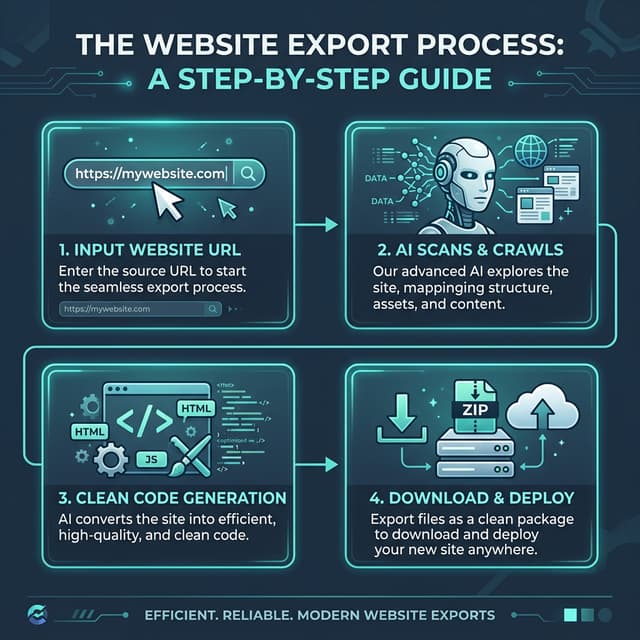
Netlify and Vercel are the easy answer for a static site, but plenty of people are not moving: the domain is already on a cPanel host, the company pays for the server, or the site has to sit next to something else already running there. All of that is fine — a static export is just files, and FTP moves files.
The one thing that reliably goes wrong is uploading the folder instead of what is inside it. Everything else is mechanical.
Before you start
You need three things from your hosting panel, usually under FTP Accounts:
- Host —
ftp.yourdomain.com, or an IP address - Username and password — the FTP account, not your hosting login
- Port — 21 for FTP, 22 for SFTP
Use SFTP if it is offered. Plain FTP sends your password in clear text. Most hosts support SFTP on port 22 and it is the same workflow.
You also need an FTP client. FileZilla is free and on every platform; Cyberduck and WinSCP are equally fine.
Step 1 — Unzip and check it works
Unzip the export somewhere you can find it. Before uploading anything, run it locally and click through it.
This is worth the two minutes. A broken link is far easier to diagnose on localhost than after it is live and you are guessing whether the problem is the export or the server.
Step 2 — Connect
Open FileZilla and fill in the Quickconnect bar:
Host:     sftp://ftp.yourdomain.com
Username: your-ftp-user
Password: your-ftp-password
Port:     22
The sftp:// prefix matters — without it FileZilla uses plain FTP regardless of the port.
Two panes appear. Left is your computer, right is the server.
Step 3 — Find the web root
On the server side, look for one of these:
public_html— cPanel, most shared hostswww— some providershtdocs— XAMPP and older setupshttpdocs— Plesk
That directory is what visitors see at your domain. If you land somewhere containing logs, tmp and public_html side by side, you are one level too high — go into public_html.
Step 4 — Upload the contents, not the folder
This is the step that goes wrong.
Your unzipped export probably looks like:
yoursite-export/
├── index.html
├── about/
├── contact/
├── assets/
└── README.md
Open yoursite-export on the left, select everything inside it, and drag that into public_html.
If you drag the yoursite-export folder itself, your site ends up at yourdomain.com/yoursite-export/ and your homepage 404s. When you are done, public_html/index.html must exist. If it is at public_html/yoursite-export/index.html, move it up a level.
You can skip README.md — it is documentation for you, not part of the site. Harmless if it stays.
Large exports take a while. FileZilla's transfer queue shows progress; leave it running.
Step 5 — Check it
Open your domain. The homepage should appear. Then:
- Click through the nav — internal links are relative, so they should resolve without you configuring anything
- Open DevTools → Network and look for 404s — a missing asset is nearly always a partial upload; re-upload that folder
- Check a deep page directly, e.g.
yourdomain.com/about/. If the homepage works and deep pages 404, see below.
Things that go wrong on shared hosting
Deep pages 404 but the homepage works
Your export uses directory-style URLs (/about/index.html served at /about/). Apache does this by default via DirectoryIndex, but some hosts disable it. Add a .htaccess in public_html:
DirectoryIndex index.html
Options +FollowSymLinks
On nginx you cannot fix this from a file — ask support to enable index index.html; for the directory.
A blank page with module errors
The server is sending .mjs files as the wrong content type, so the browser refuses to execute them. Add to .htaccess:
AddType text/javascript .mjs
Same root cause as the local file:// problem, different layer.
Fonts or images missing
On the free plan, assets are hotlinked to the original platform CDN rather than bundled. They will load as long as the visitor is online and the original site still exists. If you need everything self-contained on your own server, use the download-assets option so the ZIP carries the files.
The old site is still showing
Browser cache, or your host's cache. Hard-refresh first (Cmd+Shift+R / Ctrl+F5), then look for a cache-purge control in your hosting panel. Cloudflare in front of the domain needs its own purge.
Permission errors
Files should be 644 and directories 755. FileZilla can set this: select everything, right-click, File permissions, tick Recurse into subdirectories.
Keeping it updated
FTP has no version control, so re-uploading after every content change gets old quickly. Two ways to make it less painful:
Sync instead of re-uploading. FileZilla's directory comparison highlights what differs so you only push changed files.
Automate it. If your host supports SSH, rsync is a single command:
rsync -avz --delete ./yoursite-export/ user@yourdomain.com:~/public_html/
--delete removes server files that no longer exist locally, which keeps things clean — and will delete anything else living in public_html, so check before running it.
If you find yourself doing this weekly, that is a reasonable signal to move to a host with Git deploys. Free static hosting options covers what that would look like.